
Someone needs to run your Facebook Page. A staff member. Your son who is good with phones. The agency you just hired. And the question always comes out the same way: "Shall I just send them my password?"
Please do not. There is a proper way to do this, it takes about two minutes, and it means you can take the access back later with one click. This guide shows you exactly how, with the screens named as you will actually see them in 2026.
What you are actually sharing
This is the part most business owners get wrong, so it is worth thirty seconds. Your Facebook Page is an asset. It sits inside a container called a business portfolio (the thing older guides call Meta Business Manager). You own the container. You then let people into it — and you can put them out again.
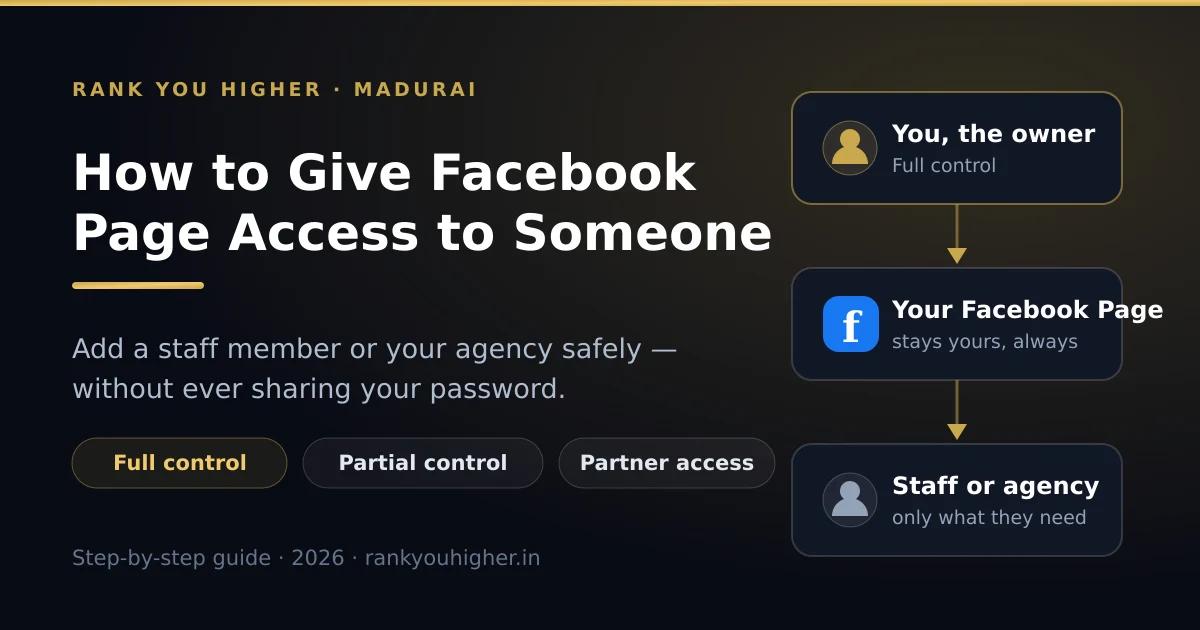
Nobody you add ever "takes" the Page. They borrow a set of jobs on it. Here is the shape of it:
The three ways to give access
There are three doors into your Page. Pick the one that matches the person.
Full control or partial control?
When you add a person with Facebook access, Meta asks you one big question: full control, yes or no. Leave the toggle off and they get partial control. Here is the difference in plain terms.
| What they can do | Partial control | Full control |
|---|---|---|
| Post, schedule and delete content | Yes | Yes |
| Reply to messages and comments | Yes | Yes |
| Create and manage ads | Yes | Yes |
| See insights and results | Yes | Yes |
| Edit Page name, timings, phone number | No | Yes |
| Add or remove other people | No | Yes |
| Delete the Page | No | Yes |
Read that table once more and you will see the rule: partial control is enough for almost everybody. A person on partial control can run your whole Facebook presence day to day. Full control is for you, and at most one person you would trust with your bank card.
Method 1: add a person, step by step
Use this for a staff member, a family member or a freelancer. You need full control yourself, and they need a Facebook account.
The screens above are simplified drawings of Meta Business Suite, not photographs. Meta moves these buttons around every year — the wording may differ slightly, but the path is the same.
Method 2: give your agency partner access
If you are handing the Page to an agency, do not add them as a person. Add them as a partner. The agency then works from its own portfolio, staff changes on their side do not touch you, and one click removes all of them at once.
Any decent agency will ask for this and nothing more. When we take on a hotel, a clinic or a showroom here in Madurai, partner access is the only thing we request — the client keeps the keys, we get a desk in the room.
An easy example from Madurai
Say you run a fourteen-room hotel near the temple. Three people touch your Facebook Page and none of them should get the same access.
| Who | What they do | What you give them |
|---|---|---|
| You | Own the business | Facebook access, full control |
| Front desk staff | Replies to enquiries all day | Partial control, messages and community only |
| Nephew who posts photos | Weekend reels and room photos | Partial control, content only |
| Your agency | Runs the ads, plans the content | Partner access to Page + ad account |
Now the useful part. Your front desk staff leaves in March. You open the same screen, remove one person, and every other arrangement stays exactly as it was. No password changed. No agency locked out. No panic. That is what this five minutes of setup buys you.
The old roles, and what replaced them
If you learned Facebook years ago, you remember Admin, Editor, Moderator, Advertiser and Analyst. Those names are gone from most Pages. Here is the translation.
| Old role | What to use today |
|---|---|
| Admin | Facebook access with full control |
| Editor | Facebook access with partial control (content ticked) |
| Moderator | Task access: messages and community activity |
| Advertiser | Task access: ads |
| Analyst | Task access: insights |
Four mistakes we see every month
When it will not work
- The "Add person" option is greyed out. You have partial control, not full. Ask whoever set the Page up to promote you first.
- Their name does not come up. Use the exact email on their Facebook account, not their work email, and check the spelling.
- The invite says pending for days. They have not accepted. Tell them to check their Facebook notifications and their email spam folder, then resend.
- You are the only one left with full control. Meta will not let you remove yourself. Add someone else with full control first.
- You cannot find Business settings at all. Your Page may not sit in a business portfolio yet. Create one free at business.facebook.com, then add the Page to it before you invite the agency.
Frequently asked questions
How do I give someone access to my Facebook Page?
Open Meta Business Suite, click Settings, then Pages, and select your Page. Click Assign people, then Add person. Enter their name or email, choose full or partial control, and confirm with your own Facebook password. They then accept the invitation from their notifications or email.
Can I give access without sharing my password?
Yes, and you should. Every proper method uses the other person's own Facebook login. Sharing a password is never required, breaks two-factor security, and is against Meta's terms.
What is the difference between full control and partial control?
Partial control lets a person post, reply to messages, run ads and see insights. Full control adds three powers: editing Page settings, adding or removing other people, and deleting the Page. Give full control only to a co-owner.
How do I give my agency access to my Facebook Page?
Use partner access. In Business settings, click Partners, then Add, then "Give a partner access to your assets", paste the agency's Business ID, select your Page, and send the request. You can remove the agency in one click later.
What is a Business ID and where do I find it?
A Business ID is the 15 or 16 digit number that identifies a business portfolio. Find yours in Business settings under Business info. Your agency will send you theirs when you set up partner access.
How do I remove someone from my Facebook Page?
Go to Settings, Pages, select your Page, then Assign people. Click the person, then Remove, and confirm with your password. For an agency, go to Business settings, Partners, select them and click Remove. Access ends straight away.
Can two people be admins of a Facebook Page at the same time?
Yes. A Page can have several people with full control, and at least one is always required. Keeping two is sensible, in case one account is lost or locked.
Why can I not add anyone to my Page?
The most common reason is that you have partial control rather than full control. Only someone with full control can grant access. Other causes are a Page not yet added to a business portfolio, or a recently created account.
What happened to Editor, Moderator and Advertiser roles?
They were replaced. Editor is now partial control with content permissions, Moderator is task access for messages and community activity, and Advertiser is task access for ads. Admin became full control.
Is it safe to give an agency access to my Facebook Page?
It is safe when you use partner access from your own business portfolio, because you keep ownership and can revoke it at any time. It is not safe to let an agency own the Page, or to send them your password.
If you would rather someone else did this
Related reading: Facebook ads for local business in Madurai, our Google Business Profile setup guide, and industry pages for hotels, clinics and real estate.